
 Step 1: Log into Google Webmaster Tools site. "Add Site" button and text input is near the top of the page. Enter your blog or web site URL in the text entry field and press the "Add Site" button.
Step 2: Then, click "Verify your site" is displayed in blue text. The "verify your site" then the page will appear. Once on the "Verify Site" You will see the "Verification Status: NOT VERIFIED." To verify you have a blog or website, you will need to enter the Google generated Meta Data to Your Blog or add special HTML pages for your website.
Choose verification method:
Blogger Setup:
* Copy of Meta tags are special lines to the clipboard.
* Log in to Blogger.
* Select the "Layout" tab.
* Click "Edit HTML" tab.
* Look for the "head" tag near the top of the HTML edit window.
* Place the cursor in the back ">" from the tag header and paste the meta tag you copied earlier data.
* Click the SAVE TEMPLATE.
* On the Google page "Verify Site", select "Verify" button and press ENTER.
Setup Website:
* Select HTML tags.
* Use your favorite text editor to open a new file. Do Save As to name the resulting file to your Google and has been listed on the page "Verify Site", an example would be like google643463284612.html.
* Upload files to the root directory of your site is usually "public_html /".
* On the Google page "Verify Site", select "Verify" button and press ENTER.
WordPress Setup:
Note: WordPress can use one method defined, but not both. May we suggest that methods such websites are the easiest to implement and requires no HTML editing.
When the Summary Page is displayed with your URL, you did everything correctly.
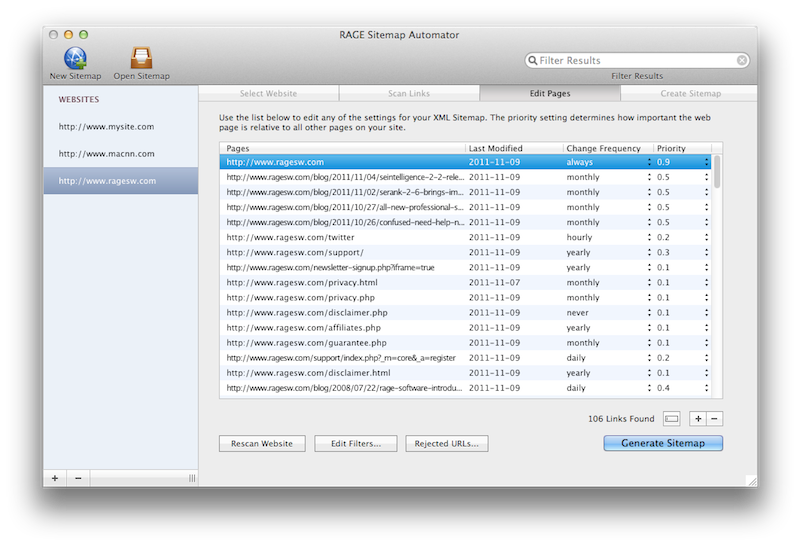
Step 3: You will need a compliant XML-Sitemap file from your blog or website. Ask Currently, Google, YAHOO and MSN Search also uses this file format.
* Blogger Setup: XML-Sitemaps are automatically generated when you revise, amend or add pages to your blog. Blogger XML-Sitemap file called atom.xml. Type your blog URL into the browser of your choice and add "/ atom.xml." to see what is automatically generated.
Wordpress Setup *: Arne Brachhold has provided great plug-ins that you can download and install on your Wordpress Blog. Follow the instructions provided on the WordPress site. Plug-ins have a graphical user interface and many options. Use the default to generate a Sitemap. Type your blog URL into the browser of your choice and add "/ sitemap.xml." to see what is automatically generated. You will see all your pages are well formatted.
* Website Setup: To create a Sitemap for your web site using a free utility that is provided to you on sites such as xml-sitemaps and freesitemapgenerator. Prefer Google Sitemaps XML-compressed files. If you use the site-xml sitemap, they will generate the correct file and four additional files. Upload files to the root of your website sitemap.xml.gz - in "public_html /" folder.
Step 4: To tell Google about your Sitemap file, go to your Overview page and press the blue text Sitemap. When the sitemap page is displayed, your URL is listed below the title. In the text field provided, enter the following text:
* Setup Blogger: Enter "feeds / posts / default orderby = updated?" In the text field and press the "Submit Sitemap" button.
* Website Setup: Enter the text "sitemap.xml.gz" in the field provided and press the "Submit Sitemap" button.
Press the "Submit Sitemap" button.

No comments:
Post a Comment